


TL;DR: Why am I having server issues?
Server issues can happen due to hardware failures, software/configuration errors, network issues, limited system resources, and in some cases, security vulnerabilities. Identifying the underlying cause of the issue is the first step toward getting the server back up and running normally again. This guide covers the most common server issues, how to identify what is causing them, and the steps you can take to troubleshoot and fix them.
Jump ahead to learn how to identify, troubleshoot, and fix these common server issues:
A business server is a centralized system that stores, manages, and provides access to the data, applications, files, and other resources a business needs to operate day-to-day. Depending on how it is set up, a server may support everything from employee file sharing and business applications to email, databases, website hosting, backups, and more. When a server stops working properly, even a seemingly minor issue can quickly lead to downtime, lost productivity, and even potential data loss.
Server problems can happen for many reasons. Recognizing the symptoms can help you identify what the issue is and the appropriate next steps to get your server back up and running. In this guide, we break down the most common server issues that businesses face, what can cause them, and how to troubleshoot and fix them.
1. Server is Down
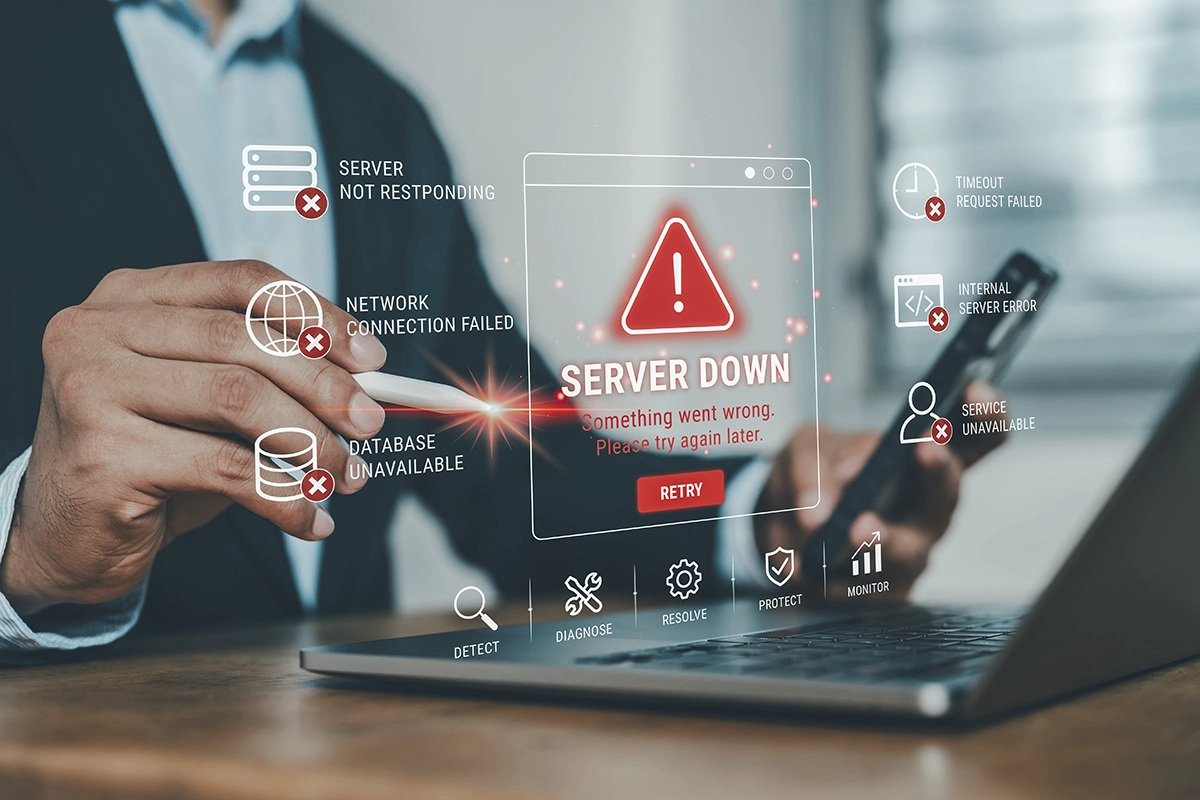
Unexpected server downtime not only puts operations at a standstill, but also puts your data at risk of corruption. The most common causes of a downed server include:
- Hardware failures
- Power issues
- Overheating
- Operating system or software errors
- Network or connectivity problems
- Failed storage drives
- Insufficient system resources
- Failed updates or configuration changes
Luckily, there are steps you can take to prevent server downtime and get things up and running again in case it happens.
How to Troubleshoot and Fix a Downed Server
Start by checking the server’s physical status, network connectivity, and monitoring alerts. If the cause is not immediately apparent, work through the following steps to identify the problem and safely restore a downed server:
- Check the Power Supply: Verify that power connections are secure and that the UPS or other backup power equipment is functioning correctly.
- Check Network Connectivity: Verify that the server is connected to the network and that network equipment is operating normally.
- Check Server Temperatures: Overheating can cause a server to shut down unexpectedly. Check temperature monitoring tools and make sure fans and cooling systems are working properly.
- Review System Logs: Look for error messages or warnings immediately before the crash. This can help determine whether the crash happened after a software installation, update, configuration change, or hardware upgrade.
- Run Hardware Diagnostics: Test memory, storage drives, and other hardware components for signs of failure.
- Restart the Server When Appropriate: If the server is unresponsive and there is no indication of an active hardware or security issue, a controlled restart may restore normal operation.
If crashes continue after basic troubleshooting, avoid repeatedly restarting the server without identifying the underlying problem first. Recurring crashes can corrupt data or indicate a more serious hardware or software failure. An IT professional can help diagnose the failure and reduce the risk of another outage.
2. Server is Running Slowly

A slow server can hinder productivity due to slow load times, application lag, and potential system crashes. Server performance can slow for many reasons, so identifying the underlying cause is essential in finding the best fix.
Common causes of a slow server include:
- Insufficient RAM, CPU capacity, or available disk space
- Too many applications, processes, users, or requests running at the same time
- Slow or unstable network connections
- Outdated software
- Failing hard drives
Fixing a slow server depends on what is causing the slowdown in the first place. The following troubleshooting steps can help identify the source of the problem and determine what needs to be addressed.
How to Troubleshoot and Fix a Slow Server
To troubleshoot a slow server, you will need to determine whether the slowdown is caused by the server itself, a specific application, or the network. Looking into the server’s resource usage and checking for recent changes can help narrow down the cause.
Below are some strategies for troubleshooting a slow server:
- Check CPU Usage: Look for applications or processes consuming an unusually high amount of CPU. Close unnecessary programs or services running in the background that may be consuming server resources.
- Check Available RAM: High memory usage can cause significant performance issues. Identify applications consuming excessive memory and consider adding RAM if the server regularly reaches its capacity.
- Check Available Storage: Low disk space can affect server performance. Remove unnecessary files and consider expanding storage if capacity is consistently low.
- Check Network Activity: If applications and files are slow to access but server resources appear normal, investigate network congestion, connectivity issues, or network equipment.
- Check for Updates: Outdated operating systems, applications, drivers, or firmware can contribute to performance problems. Apply appropriate updates and patches.
If performance issues continue or the cause is unclear, an IT professional can analyze your server performance and determine whether additional resources or infrastructure changes are needed.
3. Can’t Connect to the Server

Server connectivity problems can prevent users from accessing files, applications, and other resources they need for work.
Common causes of server connectivity issues include:
- DNS issues
- Firewall settings
- Incorrect IP configuration
- Crashed server
- Network equipment failure
Most of these problems have straightforward fixes to get your systems back up and running in no time.
How to Troubleshoot and Fix Server Connectivity Issues
Fixing server connectivity issues requires checking both physical connections and network configurations. Below are some troubleshooting strategies to try:
- Check the Power Supply: Confirm that the server is running and hasn’t experienced an unexpected shutdown.
- Check Physical Network Connections: Inspect network cables, switches, and other equipment for loose connections or hardware problems.
- Test Network Connectivity: Use appropriate network testing tools to determine whether the server can communicate with other devices.
- Verify IP Configuration: Make sure the server has the correct IP address, subnet, gateway, and other network settings.
- Check DNS Settings: Incorrect or unavailable DNS settings can prevent users and applications from locating the server.
If the server is online but remains inaccessible, the problem may require a deeper review of network configuration or server services. Persistent connectivity problems should be investigated promptly to prevent a larger outage and potential data loss.
4. Server Hardware Issues

Server hardware can fail due to age, normal wear and tear, overheating, power problems, physical damage, or component defects. A hardware problem can degrade performance and cause a variety of issues.
Common signs of server hardware failure include:
- Frequent crashes
- Unexpected shutdowns
- Disk errors
- Unusual noises
- Performance problems
- Hardware monitoring alerts
Hardware problems can be tricky to diagnose at first because a failing component may cause symptoms that look like software or performance issues. Knowing how to spot hardware issues can help you determine if any components need repairs or if full replacements are necessary.
How to Troubleshoot and Fix Server Hardware Issues
Always make sure current backups are available before replacing any server hardware or making significant changes.
Below are some ways to spot and fix server hardware issues:
- Check Monitoring Alerts: Review the server’s monitoring tools for warnings about drives, memory, power supplies, fans, or other components.
- Review System Logs: Look for recurring hardware-related errors, particularly disk or memory errors.
- Listen for Unusual Noises: Clicking, grinding, or other unusual sounds from mechanical drives can indicate a potential drive failure.
- Run Hardware Diagnostics: Use the manufacturer’s diagnostic tools or built-in server management tools to test suspected components.
- Replace Failing Components: Replace damaged or failing hardware as soon as possible, following appropriate procedures for the server and its redundancy configuration.
Replacing a failed component may resolve the immediate problem, but recurring hardware failures can indicate a bigger issue. Regular hardware monitoring and maintenance can help identify problems early and reduce the risk of unexpected downtime.
5. Server Software Errors
Server software errors can cause applications to crash, services to stop working, prevent users from accessing resources, and more. Common causes of server software errors include:
- Outdated software
- Failed updates
- Incompatible applications
- Corrupted system files
- Incorrect configurations
Catching software errors early helps prevent system-wide crashes and keeps essential applications accessible to your team.
How to Troubleshoot and Fix Server Software Errors
Resolving software issues typically requires identifying recent changes and isolating the specific program that’s causing the malfunction. Below are some strategies to restore server software stability:
- Restart the Affected Application: If an individual service or application has stopped responding, restarting it may restore functionality while you investigate the underlying cause.
- Keep a Record of Error Messages: Note the exact error, when it occurs, and which application or service is affected.
- Check for Updates: Install available updates that address known bugs or compatibility issues. Or review logs to see if the issue began after an update to the operating system, application, driver, or firmware.
- Roll Back Problematic Changes: If a recent update or configuration change clearly caused the problem, restoring a known-good configuration may be appropriate.
If software errors continue to recur, the issue may involve an underlying configuration, compatibility, or operating system problem that requires more advanced troubleshooting.
6. Server is Overheating

Servers naturally generate heat while operating, but excessive heat can cause performance problems, unexpected shutdowns, and hardware damage. Without proper cooling and airflow, server temperatures can rise beyond what their hardware is built to handle.
Common signs of server overheating include:
- Server fans are louder than usual
- Slow software performance
- Server shuts down, crashes, or restarts unexpectedly
- High temperature alerts
- Server room feels hot
Addressing an overheating server quickly is essential to preserve its lifespan and prevent unexpected data loss.
How to Troubleshoot and Fix Server Overheating
The first step is determining whether the problem is caused by the server’s cooling system, its environment, or excessive heat being generated by the hardware. Start by checking the server’s temperature readings and cooling components, then inspect the surrounding environment for anything restricting airflow or increasing the temperature.
Strategies to prevent server overheating include:
- Routine Dusting: All vents, fans, and internal components should be cleaned of dust on a regular schedule for proper airflow.
- Temperature Monitoring: Monitoring tools can track server room conditions and send alerts if temperatures climb too high. Lower the room’s ambient temperature or bring in fans to circulate cooler air.
- Organize Cables: Proper cable management keeps wires from blocking air vents and fans.
- Turn Off Devices: Shut down any non-essential devices or programs to reduce the load on the server’s CPU.
Keeping a server room between 75–80 °F with enough clearance for the air to circulate can help prevent servers from overheating before lasting damage occurs.
7. Server Storage Issues
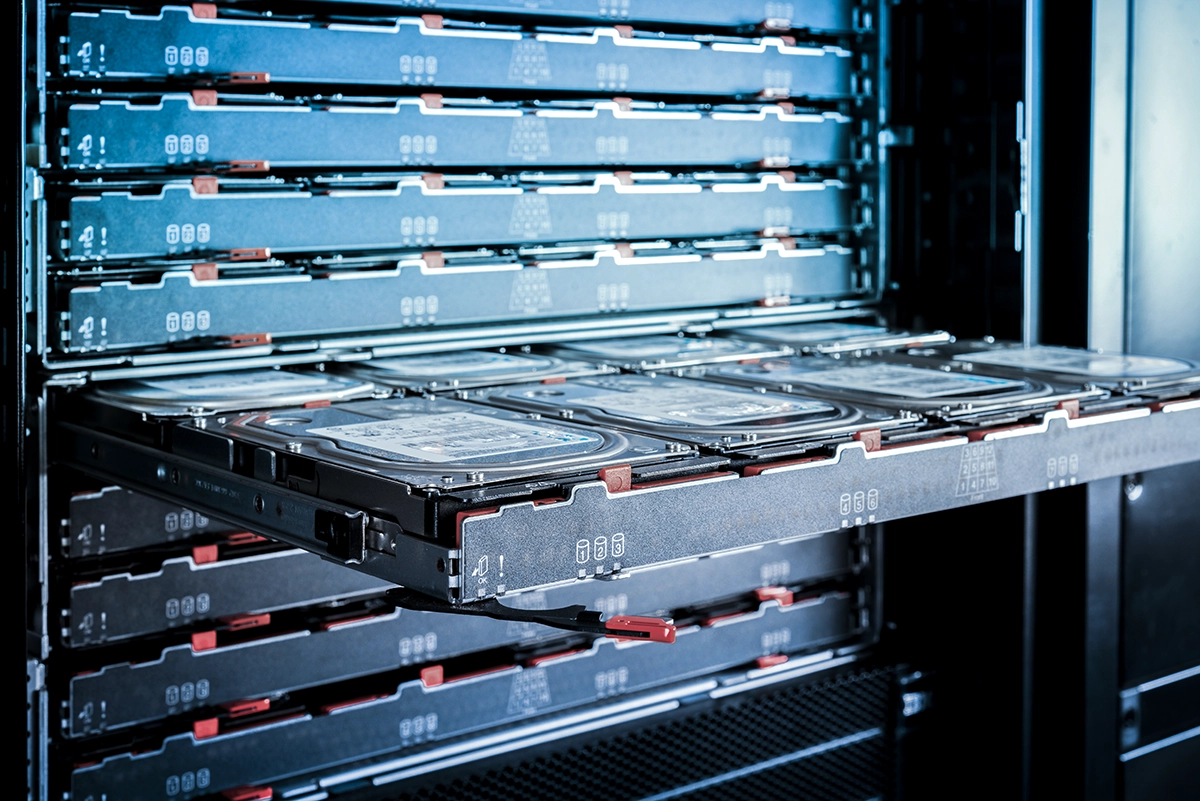
Every server has a limited amount of storage space. As businesses generate more files, emails, backups, and database records over time, capacity can fill up faster than you might expect. Running out of storage can slow down performance or cause full system crashes.
Below are some common signs that your servers don’t have enough storage:
- System alerts indicating low disk space
- Can’t save new files or update databases
- Slow app performance or file transfers
- Unexpected crashes
To prevent data loss or system crashes, storage issues should be addressed quickly, particularly when the server is running critically low on space.
How to Troubleshoot and Fix Server Storage Issues
Managing server storage issues requires a balance of immediate cleanup and long-term infrastructure planning. Below are some ways to prevent and fix server storage shortages:
- Data Archiving and Cleanup: Archive or delete outdated files, old backups, and unused software to reclaim space.
- Storage Expansion: Upgrade existing drives to higher-capacity SSDs or HDDs, or install additional storage drives to expand total capacity.
- Cloud Storage Integration: Move cold data, historical records, and backup files to cloud storage platforms to free up local server drives.
- Automated Alerts: Set up automated alerts so you’re aware of low storage before it stalls operations, giving your organization time to plan.
- Establish Data Retention Policies: Set clear schedules and systems for purging unnecessary data before it fills up your drives.
It’s never a good idea to wait until a server reaches 100% capacity before addressing the problem. Regular monitoring and solid data retention policies can help prevent storage-related issues from happening in the first place.
8. Server Security Issues

Sometimes unusual server activity, sudden performance drops, or unexplained changes can indicate a cybersecurity problem rather than a technical issue. Server security problems can result from malware, compromised accounts, outdated software, misconfigured access controls, or other vulnerabilities.
Common warning signs of compromised server security include:
- Unusual network activity
- Unexpected user accounts
- Unauthorized software
- Unexplained file changes
- Sudden performance problems
- Repeated failed login attempts
Security issues require a different approach from routine server troubleshooting, as investigating or changing the system can affect evidence and potentially make the problem worse. If you suspect the server has been compromised, prioritize containing the threat and involve your IT team immediately.
How to Troubleshoot and Fix Server Security Issues
Fixing a server security issue requires quick action. This includes isolation, thorough scanning, and immediate login credential updates to prevent further unauthorized access. However, avoid making unnecessary changes until the situation has been assessed, particularly if there is evidence of an active security incident.
Below are some of the most essential steps for responding to a server security threat:
- Involve Your IT Team Immediately: Contact your IT team or cybersecurity provider as quickly as possible so they can contain the threat and determine the appropriate response.
- Review Security Alerts: Look for unusual login attempts, unauthorized accounts, unexpected processes, or suspicious network activity.
- Isolate the Server: If the server appears compromised, follow your organization’s incident-response procedures to limit further access or spread.
- Scan for Malware: Use appropriate security tools to identify malicious software or other threats.
- Update All User Credentials: Update all user credentials and implement multi-factor authentication (MFA). Institute a password audit schedule and regular cybersecurity training to keep employees up to date with best practices.
- Apply Security Patches: Update vulnerable operating systems, applications, and other software after following appropriate incident-response procedures.
Unusual server activity should be treated seriously, particularly when there are signs that an unauthorized person or malicious software has accessed the system. If you suspect a security breach, contact your IT team or cybersecurity provider as quickly as possible so they can contain the threat and determine the appropriate response.
Ongoing patching, access controls, monitoring, backups, and security testing can reduce the risk of future server security issues.
Get On-Demand IT Support and 24/7 Monitoring from True IT
Servers are meant to work quietly behind the scenes, powering nearly every digital task so you can focus on growing your business. With regular monitoring, proactive maintenance, and the right safeguards in place, most server problems are entirely preventable, and the ones that do happen can be resolved quickly before they escalate into costly downtime.
For decades, True IT has helped businesses all throughout Sonoma County keep their servers running seamlessly with expert managed services. We offer 24/7 monitoring and on-demand support to help your business thrive.
Don’t wait for a server problem to hit. Stay ahead of the game and protect your business by scheduling your FREE IT consultation today.
References
- Moss, D. & Dell. (2009). DATA CENTER OPERATING TEMPERATURE: WHAT DOES DELL RECOMMEND? Dell. https://i.dell.com/sites/content/business/solutions/whitepapers/en/Documents/dci-Data-Center-Operating-Temperature-Dell-Recommendation.pdf



Comments